Semi-automatically Generate PDF Table of Contents
I wanted to read Building a UI Framework by Ian Hickson. However, the PDF file is quite long and I can’t read it all at once. To better understand the content, and to be able to jump to specific sections, I wanted to create a table of contents for the PDF file.
I thought about manually creating a table of contents (ToC) for the PDF file, but it’s too tedious. After some research, I found a nice tool that can generate ToC for PDF files semi-automatically.
Tool - pdf.tocgen
Section titled “Tool - pdf.tocgen”pdf.tocgen is a CLI tool that can generate ToC for PDF files semi-automatically.1 This tool is mainly useful for PDF files that are digitally produced (e.g. from a word processor or a web browser) so it’s not for scanned PDF files.
pdf.tocgen follows the Unix philosophy and provides you with a pipeline of tools (pdfxmeta, pdftocgen, and pdftocio) to generate ToC for a PDF file.
pdfxmeta: create a recipe file containing metadata that helpspdftocgenextract the headings from the PDF file.pdftocgen: generate a ToC from the recipe file.pdftocio: insert the ToC into the PDF file.
in.pdf │ ┌──────────────────────┼────────────────────┐ │ │ │ ▽ ▽ ▽┌──────────┐ recipe ┌───────────┐ ToC ┌──────────┐│ pdfxmeta ├─────────▷│ pdftocgen ├────────▷│ pdftocio ├───▷ out.pdf└──────────┘ └───────────┘ └──────────┘Let’s see it in action to add ToC to the PDF file.
Install pdf.tocgen
Section titled “Install pdf.tocgen”You can either use uv or pip to install.
uv tool install pdf.tocgenpip install -U pdf.tocgenCreate Recipe with pdfxmeta
Section titled “Create Recipe with pdfxmeta”pdfxmeta -p <page_number> -a <heading_level> <pdf_file> "<heading_text>"This is the manual work you need to do. You need to provide the page number and the heading text to the cli-tool. You also set the heading level. It doesn’t find it for you.
There’s a level 1 heading on page 2 called “Background”. Let’s run it.
$ pdfxmeta -p 2 -a 1 ui-frameworks.pdf "Background"[[heading]]# Backgroundlevel = 1greedy = truefont.name = "Unnamed-T3"font.size = 27.997501373291016# font.size_tolerance = 1e-5# font.color = 0x000000# font.superscript = false# font.italic = false# font.serif = false# font.monospace = false# font.bold = false# bbox.left = 18.0# bbox.top = 19.75226402282715# bbox.right = 182.93228149414062# bbox.bottom = 51.16743087768555# bbox.tolerance = 1e-5It outputs the metadata in TOML. This is what pdf.tocgen calls a “recipe”.
By default, most of the fields are commented out. You can uncomment them if it helps pdftocgen find the headings.
You might need to do some trial and error to get good settings.
You can save the recipe to a file, e.g. recipe.toml.
pdfxmeta -p 2 -a 1 ui-frameworks.pdf "Background" > recipe.tomlYou should repeat this process for each level of heading you want to add and append them to the recipe file. For example, like this:
pdfxmeta -p 2 -a 2 ui-frameworks.pdf "Applications" >> recipe.tomlBut for simplicity, I’ll just demonstrate creating only level 1 headings.
Create ToC with pdftocgen
Section titled “Create ToC with pdftocgen”pdftocgen <pdf_file> < <recipe_file>Running pdftocgen will generate a ToC for the PDF file. And you can manually check if the ToC is correct.
If not, you can tweak the recipe until you’re happy with the ToC.
Let’s try it with our recipe.toml file.
pdftocgen ui-frameworks.pdf < recipe.toml" Background " 2" Goal: Maximizing developer adoption " 15" Goal: Maximizing performance " 34" Goal: Maximizing the range of possible display effects " 43" Goal: Minimizing power consumption " 45" Design choices " 47" Programming language " 99" Framework internals " 141" I J K L " 144" G/K I/J L " 145" Operational strategy " 178" Conclusion " 200" Table of contents " 204" Acknowledgements " 206As you can see, it is a good start but there are false positives. These are not supposed to be headings:
" I J K L " 144" G/K I/J L " 145You can tweak the recipe through trial and error to find the settings that generate a good ToC. This is the recipe I ended up with:
[[heading]]# Backgroundlevel = 1greedy = truefont.name = "Unnamed-T3"font.size = 27.997501373291016# font.size_tolerance = 1e-5# ...# font.bold = false # bbox.left = 18.0 bbox.left = 18.0# bbox.top = 19.75226402282715# ...# bbox.tolerance = 1e-5With this recipe, running pdftocgen will generate a ToC without those false positives.
You can now save the ToC to a file, e.g. toc.txt.
pdftocgen ui-frameworks.pdf < recipe.toml > toc.txtYou can inspect the ToC file and make edits you want. For example, I removed the extra spaces before and after the heading texts.
Insert ToC into PDF with pdftocio
Section titled “Insert ToC into PDF with pdftocio”pdftocio <input_pdf> <toc_file> -o <output_pdf>This simply outputs the PDF file with the ToC. Let’s run it.
pdftocio ui-frameworks.pdf < toc.txt -o ui-frameworks-with-toc.pdf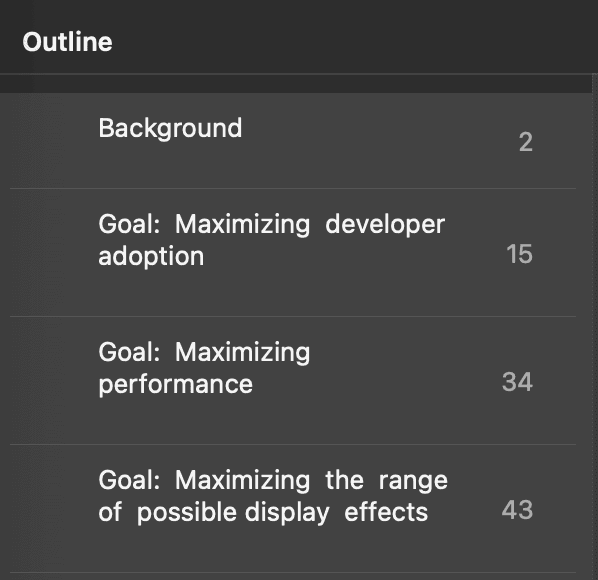
End notes
Section titled “End notes”I am glad I found this tool. Although I only occasionally encounter long PDFs that don’t already have a ToC, pdf.tocgen greatly reduces the time it takes to add one when I need to.
Special thanks to the author of the tool and also this article. I didn’t understand how to use pdf.tocgen until I read it.
Footnotes
Section titled “Footnotes”-
The README says “automatically” but I don’t think that’s accurate. It requires you to do some manual work to extract the headings from the PDF file. ↑